 Jigar Karangiya
Running a store on Adobe Commerce Cloud (Magento Cloud) means working with multiple environments like production , staging , and integration. Each environment has limited disk space. If storage gets full, deployments may fail or the site may crash.
Luckily, Adobe provides a simple CLI command:
magento-cloud mount:sizeThis command shows the storage usage of different mounts (like var, pub/media, or tmp) in your cloud project. Let’s break it down with examples.
Syntax of the Command
magento-cloud mount:size -p <project-id> -e <environment>Example: Checking Disk Usage in Staging
Suppose you want to check the staging environment of a project with ID phoshzbzzzzvm. Run:
magento-cloud mount:size -p phoshzbzzzzvm -e stagingSample Output:
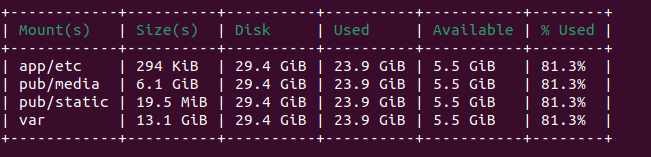
This helps you see where your storage is being consumed. For example, pub/media often grows large due to product images.
Common Use Cases
- Before Deployment – Check free space to avoid failed builds.
- Debugging Issues – Identify if logs, media, or cache are consuming too much space.
- Proactive Monitoring – Regularly check storage usage in staging/production.
Best Practices
- Run
magento-cloud mount:sizeweekly for production environments. - Clean unused logs and reports if
/varis filling up. - Use a CDN or remote storage for
pub/mediaif it grows too large. - Contact Adobe support if you need more allocated storage.
Conclusion
The magento-cloud mount:size command is a quick and reliable way to check disk usage per environment in Adobe Commerce Cloud. By using the project ID (-p) and environment (-e) flags, you can monitor storage consumption in staging, production, or integration. Regularly running this command helps prevent downtime and keeps your Magento store healthy.
FAQs
Can I runmagento-cloud mount:size without project and environment flags?
Yes, but it will use your default linked project and environment.
How do I find my project ID?
Use magento-cloud project:list to see all available project IDs.
What if I need to increase disk space?
You must request an upgrade from Adobe Commerce Cloud support.
External References
- Adobe Commerce Cloud CLI Reference (opens in new tab)
- Adobe Commerce Cloud Project Configuration (opens in new tab)
You may also like,
Backups (snapshots) in Magento Commerce Cloud
Securely render Javascript inside Magento 2 template files using…
How to Sync Magento 2 Media Files Using rsync on Adobe…
Thank You.